
The most important function of the editor can be accessed in several ways. Choose the option that best suits your workflow.
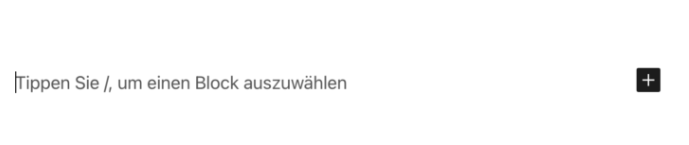
Method 1: Enter “/” 
If you click on an empty line below a block, a paragraph block is inserted at this point by default. If you enter the hotkey “/” here, you will instead see a selection of block types that can replace the paragraph. If you select one of them, it will be inserted into the editor.
Method 2: The plus icon 
If no block is currently selected, you will see a plus icon to the right below the bottom block, which you can use to add a block to the layout. This icon also appears when you hover your mouse over the area between two blocks.
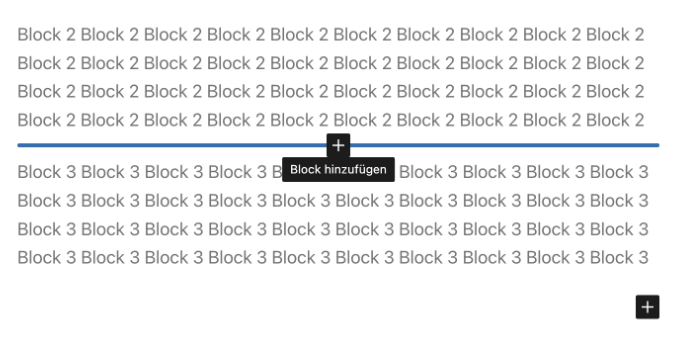
Clicking on the plus sign opens a drop-down menu with the most frequently used blocks and a link that opens the block inserter.
Method 3: The block inserter 
If you want to have the entire selection of blocks available right away, you should use the block inserter. As mentioned above, you can open it via the plus icon in the editor toolbar. Simply select the block you want and add it to your page with a click. It will then appear either at the bottom of the page or below the block that is currently being edited.
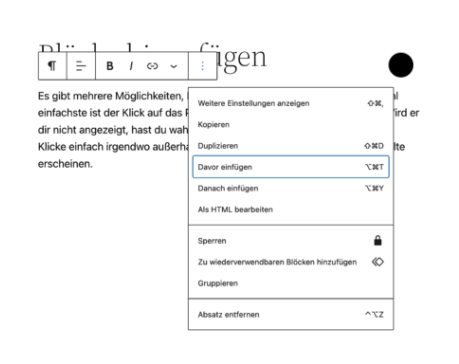
4. Method: Insert before/after 
The three dots in the toolbar of the currently selected block give you the option to insert a block before or after it. You can also use the keyboard shortcuts ⌥⌘T (before) or ⌥⌘Y (after). From here, you can use method 1 or 2 to insert a new block at the desired location.