Of course, your website also has a local header menu. In this article, we explain how you can manage it.

The new website has a new, very specific target audience: new visitors who are not yet with Jesus or familiar with ICF.
We built the website primarily for them, and this should also be reflected in the menu. So our focus is:
Compact and clear menu
Less content, but more relevant content


To ensure a consistent look across all ICF websites, we have defined a clear structure for the main navigation. This helps keep sites clean, simple, and user-friendly. 
To keep things simple and focus, the main menu items are defined and set!

Visit (Besuchen)
Sermons (Predigten)
About (About)
Connect (Finde Anschluss)
Ministries (Angebote)
Events (Events)
Give (Spenden) → optional
Based on various research, we have decided to limit the main menu to 7 items.
What does this mean?
If you decide to use all 7 predefined menu items, the limit is reached (the give menu item is optional).
If you do not use the give menu, you are free to use another element
If you do not have any sermons and can skip the menu, you are also free to add a menu element
These main menu items may not be renamed.
The order of these items is fixed and should not be changed.
Sub-menu items under the main items are flexible and can be defined locally.


You are free to add your own links or sub-menu items under each main menu item.  There is no limit on that - Just check, what looks good.
Our design is intentionally built so that you don't add too many menu items and overload it.
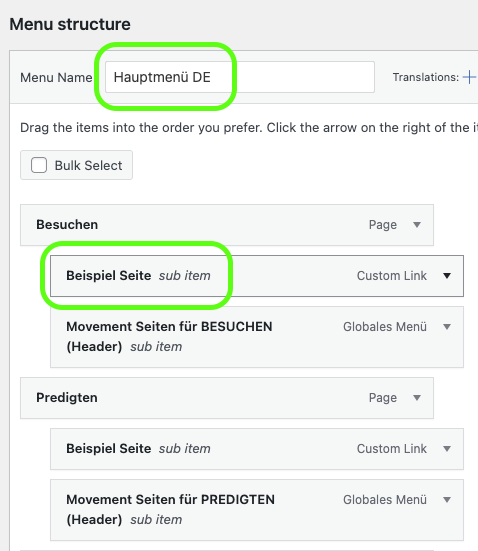
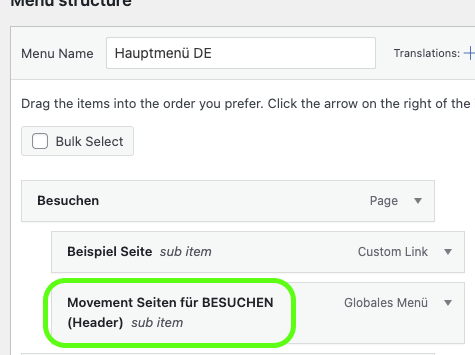
However, under every menu item, there is a placeholder for global Movement links. These must remain in place, cannot be removed, and should always be listed at the bottom of the sub menu.
You’re welcome to add further elements above them to fit your local needs.

In the WordPress admin interface, you can edit the main navigation under Appearance → Menus.
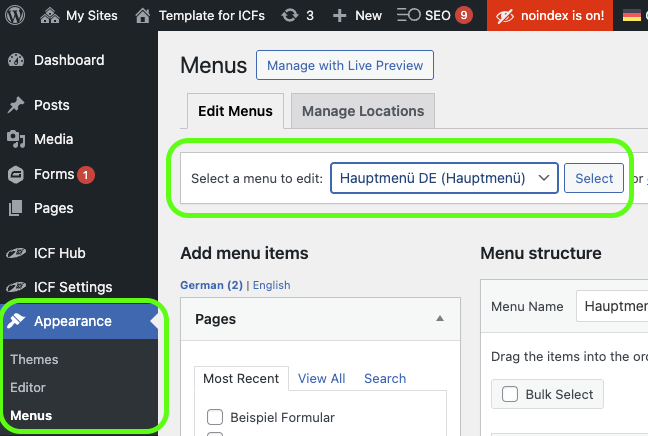
The template you will get from us already includes the main menu in English & German. You can choose in the marked area with the dropdown of the menu and click on select, to edit it.
Different languages
Every language of your website, needs a main menu item. Your main menu does not exist yet in the language. Just click on “Create a new menu”
Add a page to the menu
If you add a page that has translations (e.g. a DE page with EN version), it will show up in both languages. 
If a page has no translation, it will not appear in the other language menu.
You are free to add your own links or sub-menu items under each main menu item.
However, under every menu item there is a placeholder for global Movement links. These must remain in place, cannot be removed, and should always be listed at the bottom of the sub menu.
You’re welcome to add further elements above them to fit your local needs.
We also have some Guidelines for the FAQ Section in the Visit (Besuchen) Menu entry:
Local Second Menu (FAQ)
sfasdf
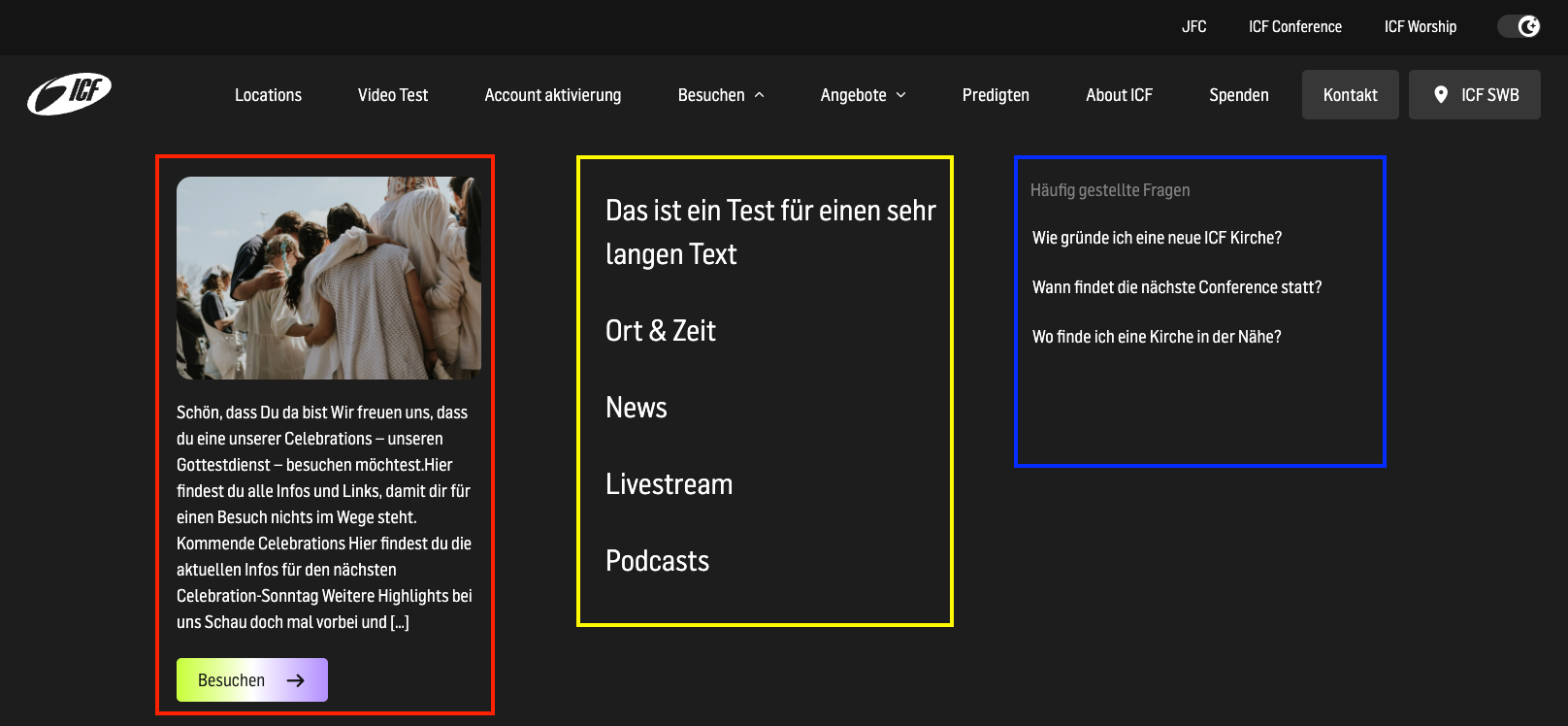
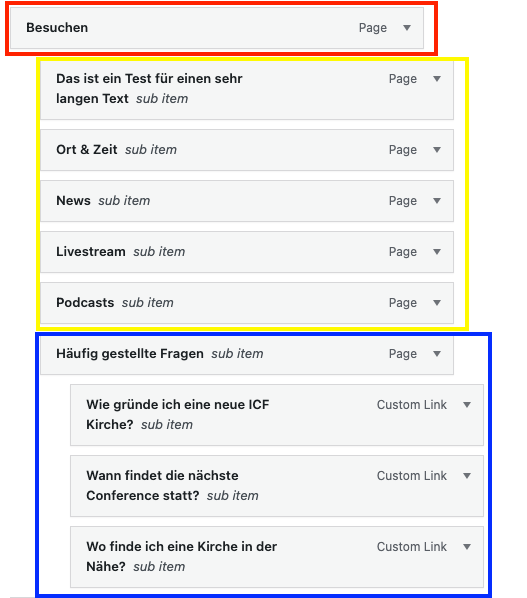
The Sub Menu can be split in 3 Parts.
The main Link you selected shows up with the Image & Description from that Page with a Button
Other Links you can define. These links must be under the main Link.
Smaller Links that can be used for example for an FAQ area. To create this level, you need to add a third Level Link to a Second level Link. The second lvl Link will be the Headline.
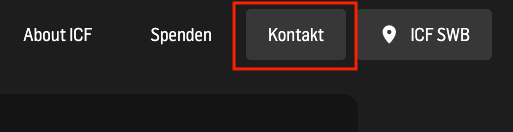
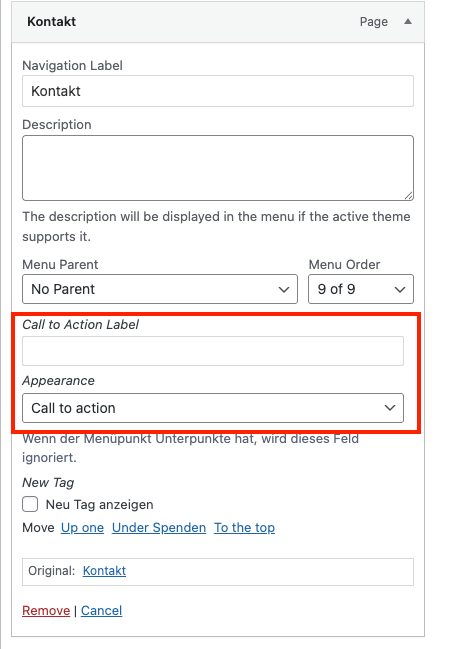
First level links can be displayed as an Button. Therefore you have to change the Appearance to “Call To Action”
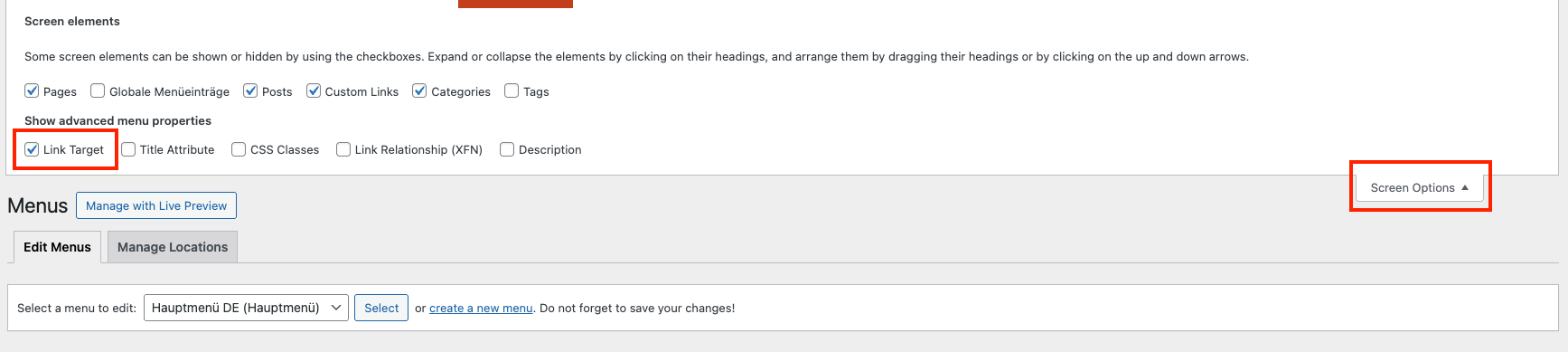
If you want a Link to open in new tab, you first have to enable “Link Target“ under the Screen Options in the top right corner.
Then the “Open link in a new tab“ is shown under each link.
Second Level Links can have a new Tag:
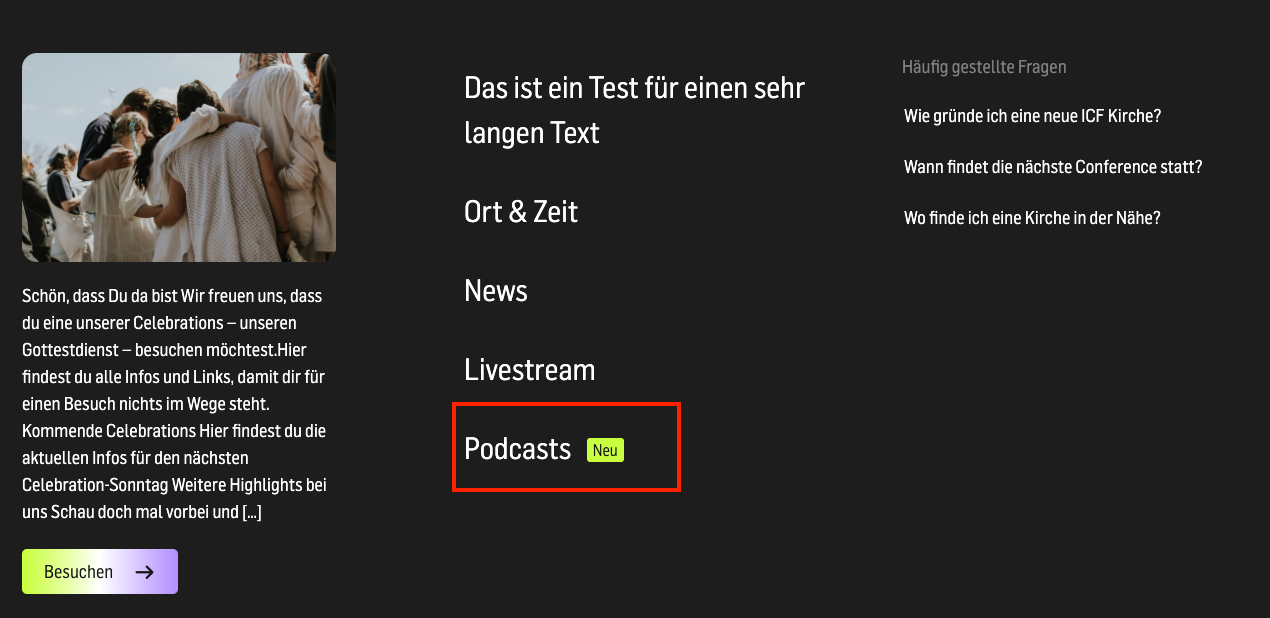
You can enable it with the “Neu Tag anzeigen“
First of all, create the Menu in your Website main language.
Then you can synchronize it to a different Language:

If you make changes, we recomend to do it in your main Language and then Synchronize it.
If you made your translation of the Pages correctly, it will map them automatically. if some Pages do not have a translation, they won’t show up in the Menu.
To change some Names / Links of the translated Menu you can click on the  English to edit the Menu in the different Language.