You can easily add different content elements such as Spotify, YouTube/Vimeo videos.
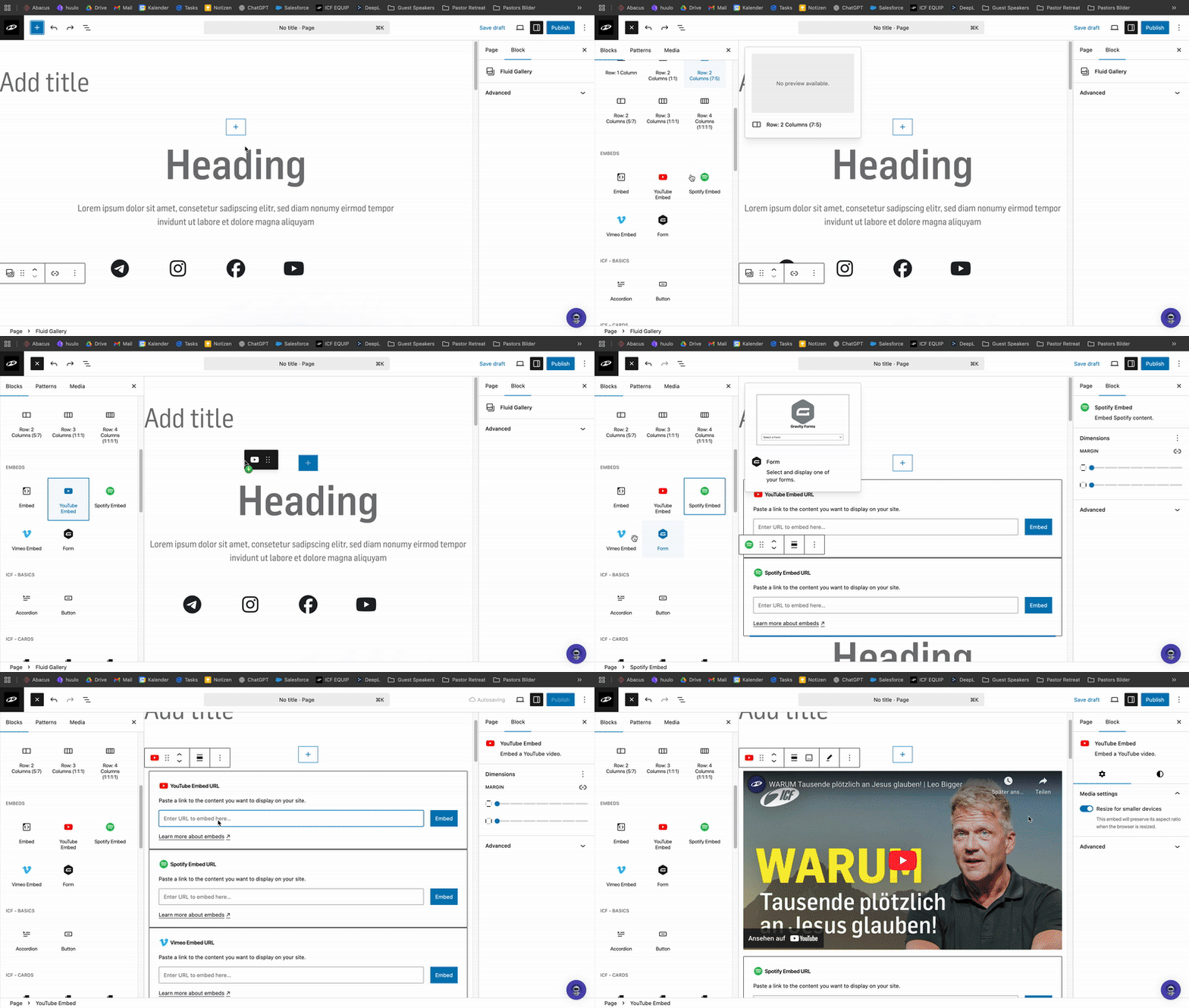
Click on “Block Inserter” (the blue + at the top left). A window will open on the left side.
Scroll down until you see the section titled “Embeds”.
Drag and drop the element where you want it on your page – or simply click the element to insert it.
At last, paste the link to your video (YouTube or Vimeo) or Spotify track.
‘Steps are covered in the video above’

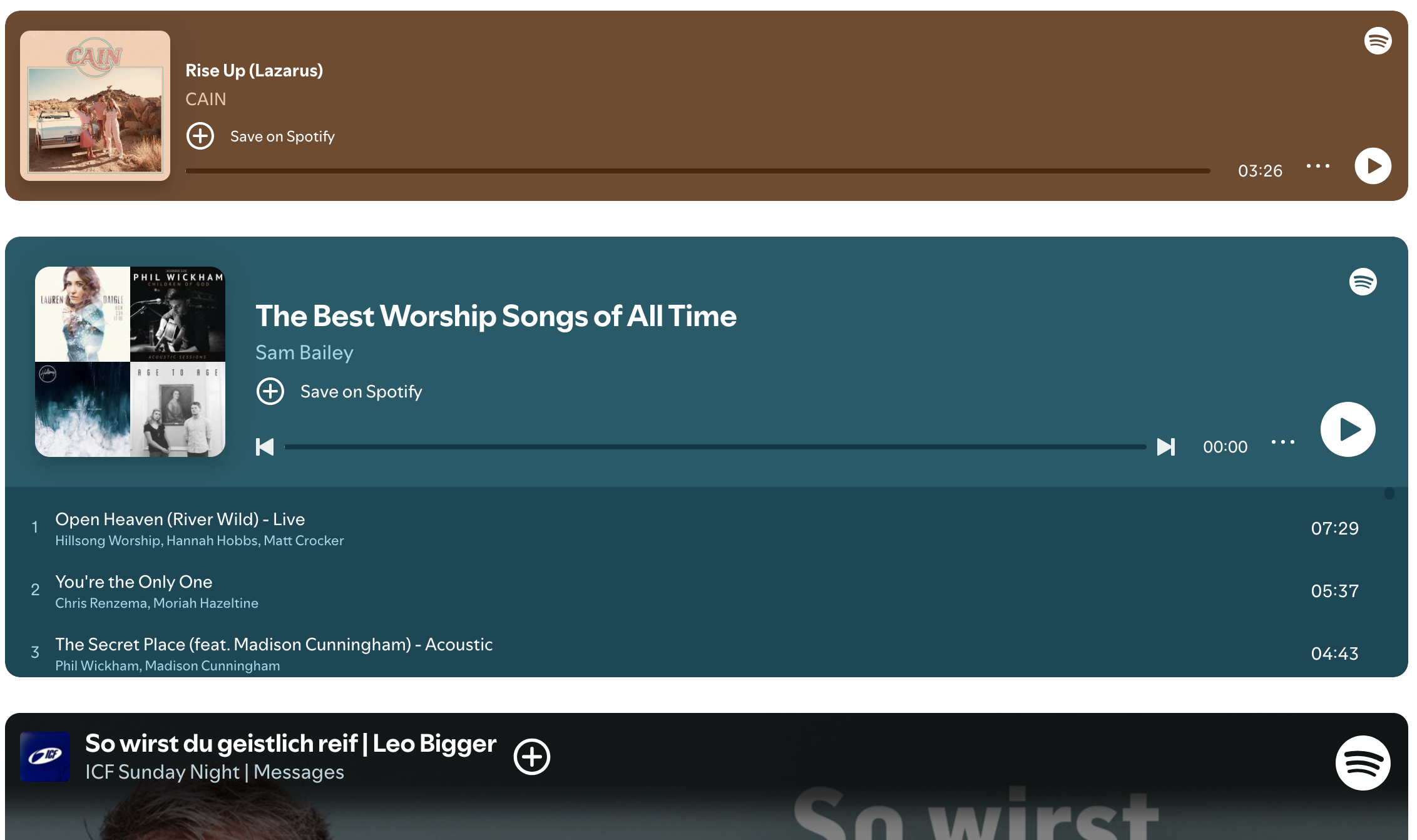
You can embed different Spotify elements too: Songs, Playlists, or Podcasts.

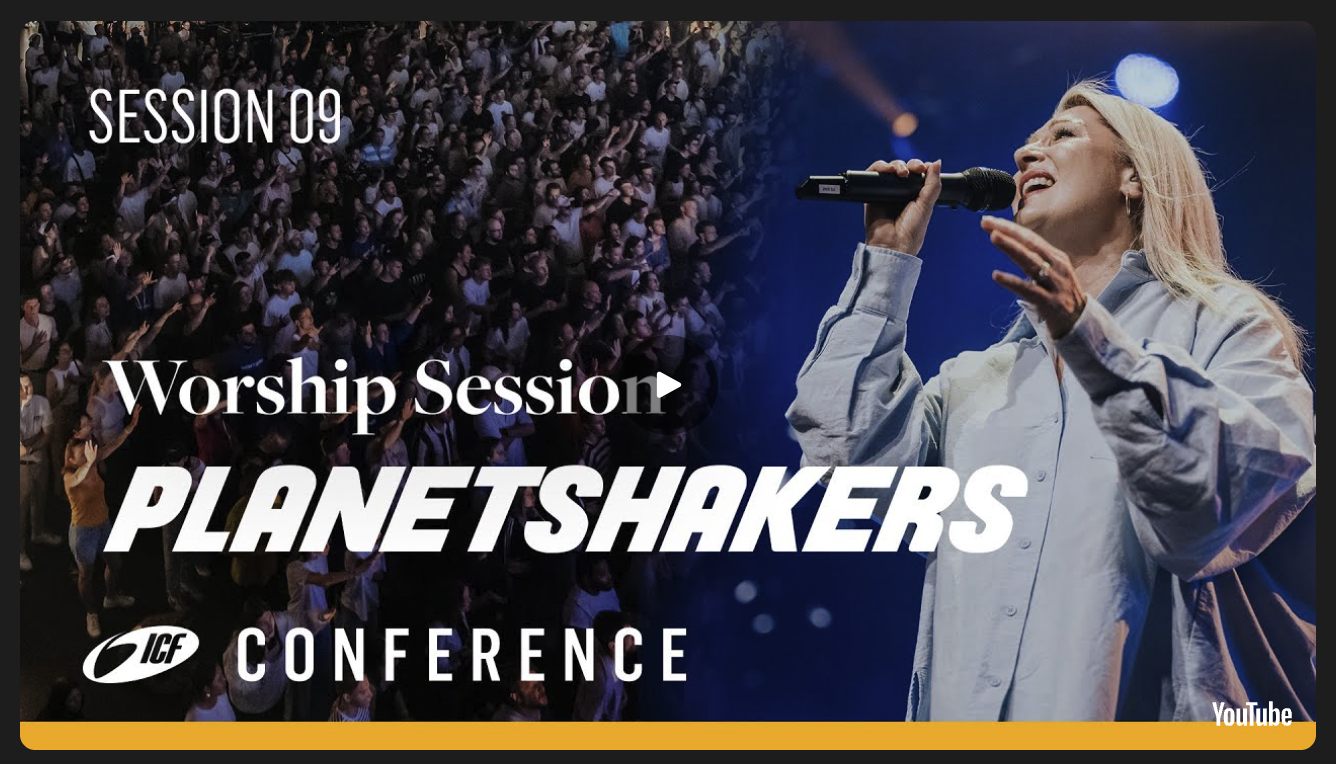
You can embed different YouTube elements : Videos, Playlist or Shorts.


For longer videos, we recommend uploading to Vimeo or YouTube and then embedding them with these blocks.
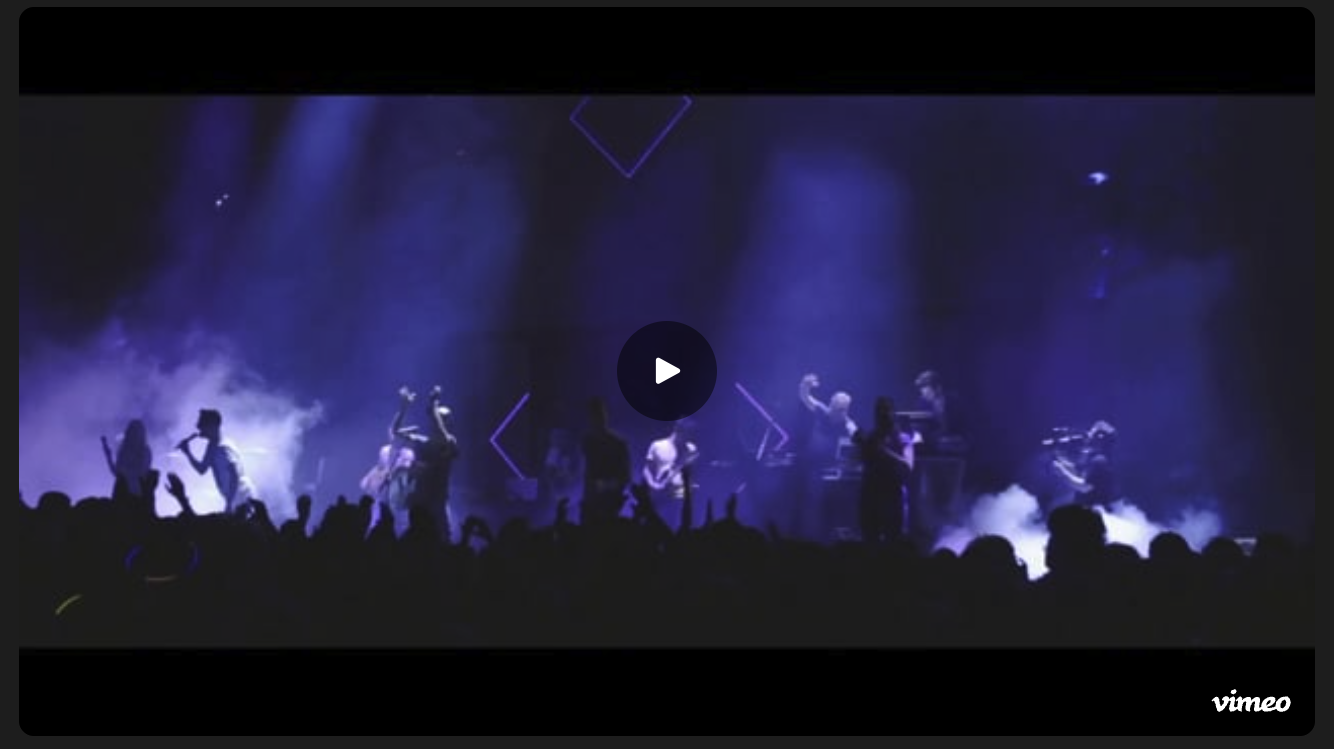
Your Vimeo Thumbnail is not loading ?
For Vimeo Videos to work on the Website they must be set public in Vimeo.
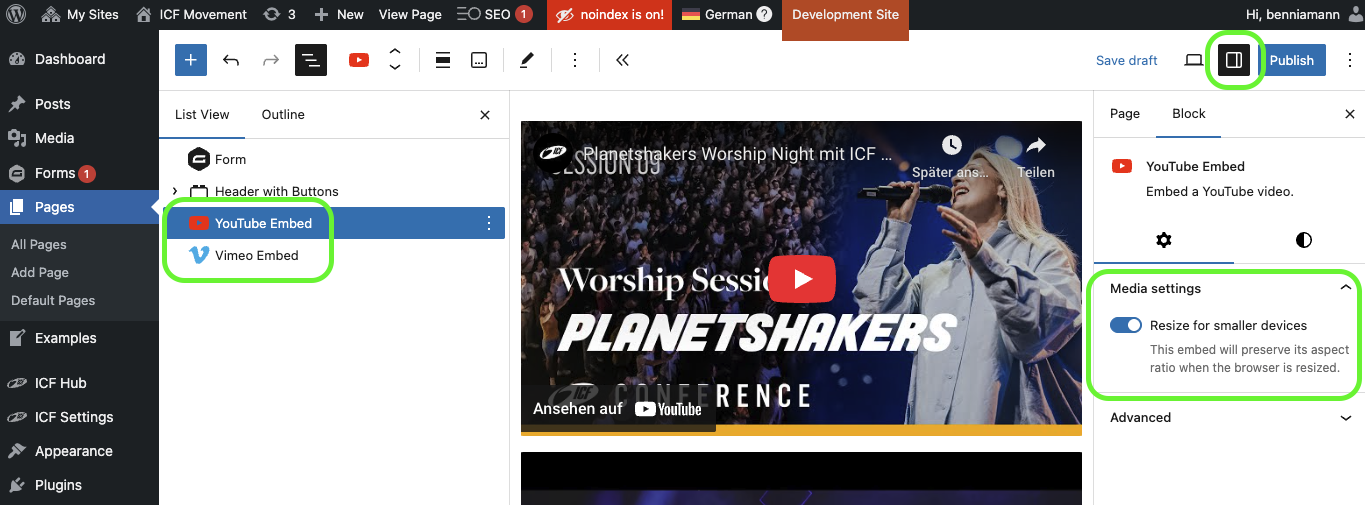
Don't forget: When you click on the respective YouTube or Vimeo element and activate the sidebar (see screenshot), additional settings will open.
There you can, for example, resize the elements for smaller devices. The embed will preserve its aspect ratio when the browser is resized.

We use Gravity Forms as our form solution, and these can also be embedded. You can find more information about this in the other tutorials. 
What is Gravity Forms? 📋
Everything you need to know about Gravity Forms
Integrate a Form 📋
How to integrate a Form in your page