To edit a block, you must first select it. Depending on your general settings, a toolbar will then appear above the block or at the top of the editor. Here you will find different editing options depending on the block type. For example, you can specify the text alignment for a paragraph and crop an image.
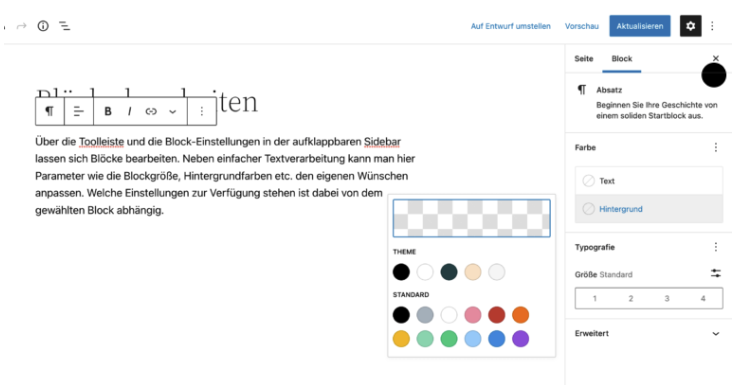
You can find even more options in the block settings, which you can access via
the gear icon at the right end of the editor toolbar,
the keyboard shortcut ⇧⌘, or
the block toolbar (see below).
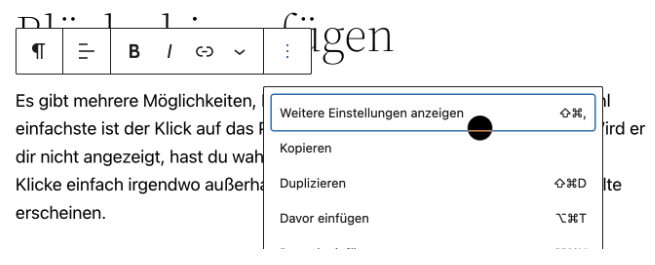

Sometimes you need to use a block more than once on a website. Whether it's a simple paragraph or an element with a complex layout, you can save yourself a few clicks by duplicating the block instead of creating it from scratch. To do this, either select the corresponding “Duplicate” option in the block's advanced toolbar or use the keyboard shortcut ⇧⌘D.

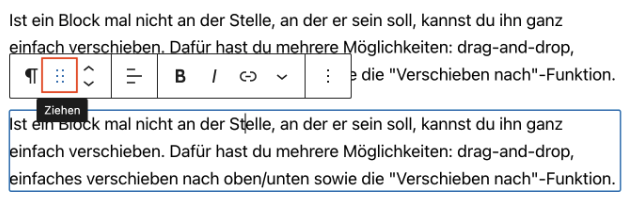
If a block is not where it should be, you can move it. The intuitive option is drag and drop: simply click on the six dots in the block toolbar and drag it to the desired position.
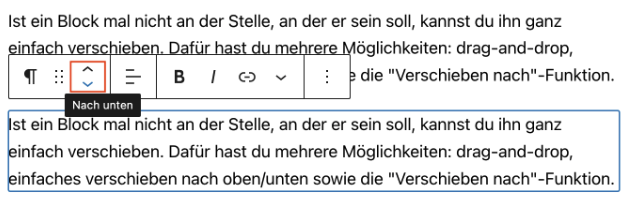
However, drag and drop can be a bit fiddly, especially on large pages with lots of blocks. Another option requires more clicks but offers greater precision. Using the two arrows in the block toolbar, you can move a block up or down one position.
We do not recommend using the “Move to” function in the advanced block toolbar. It may work, but it often doesn't.